Python Hello World on a Raspberry Pi

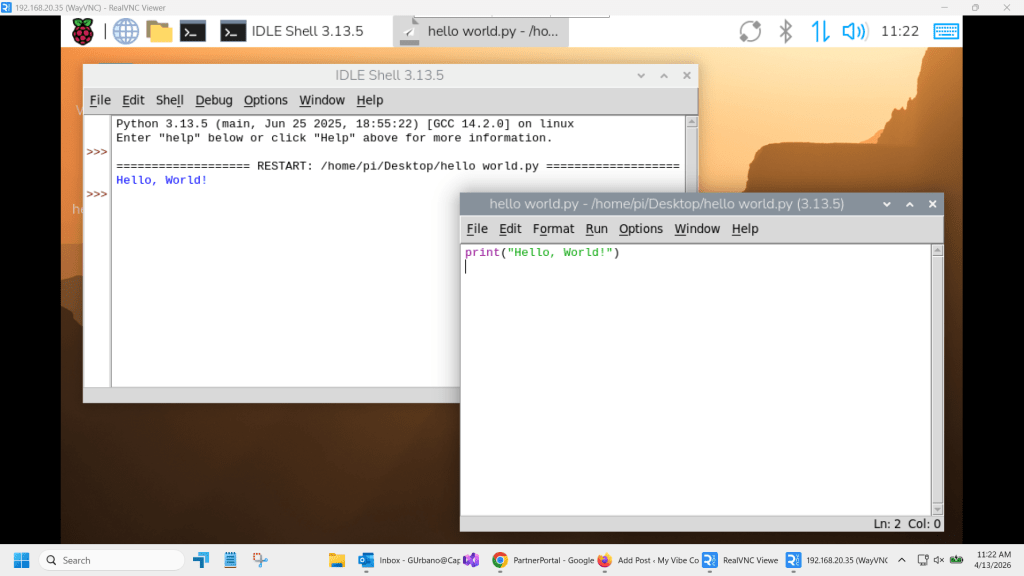
The next logical step after the last post is to created a python “Hello World” app on my Raspberry Pi.

Lets try Chat GPT this time, you have probably already figured out the Claude excels at these tasks.

We are going to reuse the same prompt as last time with a couple of changes:

Create a step by step guide, writing a “Hello World” program in Python, use IDLE, on my Raspberry Pi, assume the reader has zero knowledge of Python and or this project. I want to remote in via the built in VNC feature on the Rasberrian OS

One of the things you notice first is that the results do not come in that nifty right sidebar with a complete code download button out of the box.

I did ask for a nicer version.

🐍 Raspberry Pi Python β€œHello World” Guide

Using VNC + IDLE (Beginner Friendly)


🎯 Goal

By the end of this guide, you will:

  • Connect to your Raspberry Pi remotely
  • Open Python’s editor (IDLE)
  • Write your first program
  • Run it and see:
    Hello, World!

🧰 What You Need

  • Raspberry Pi with Raspberry Pi OS
  • VNC enabled on the Pi
  • Another computer with VNC Viewer installed
  • IDLE available in the Raspberry Pi menu

🌐 Step 1: Connect to Your Raspberry Pi (VNC)

  1. Open VNC Viewer on your computer
  2. Enter your Pi’s IP address
  3. Click Connect
  4. Log in with your Pi username and password

βœ… You should now see your Raspberry Pi desktop


πŸ–₯️ Step 2: Open Python (IDLE)

  1. Click the Raspberry Pi menu (top-left corner)
  2. Go to Programming
  3. Click IDLE or Python 3 (IDLE)

πŸ’‘ A window called Python Shell will open β€” this is normal


πŸ“„ Step 3: Create a New Python File

  1. In the Python Shell window, click File
  2. Click New File

πŸͺŸ A blank editor window will appear


✍️ Step 4: Write Your First Program

Type this exactly:

print("Hello, World!")

⚠️ Be careful with:

  • Parentheses ( )
  • Quotation marks " "
  • Spelling of print

πŸ’Ύ Step 5: Save Your File

  1. Click File β†’ Save
  2. Choose a location (Desktop is fine)
  3. Name the file:
hello.py
  1. Click Save

▢️ Step 6: Run the Program

  1. Click Run β†’ Run Module
    (or press F5)

πŸŽ‰ Step 7: See the Result

Look at the Python Shell window.

You should see:

Hello, World!

βœ… Success! Your first program worked.


🧠 What Did You Just Do?

print("Hello, World!")
  • print β†’ tells Python to display something
  • "Hello, World!" β†’ the message

πŸ‘‰ Together: show this message on the screen


πŸ§ͺ Try This Next

Change your message:

print("Hello from my Raspberry Pi!")

Save and run again.


⚠️ Common Mistakes

❌ Missing quotes

print(Hello, World!)

βœ… Correct

print("Hello, World!")

❌ Misspelling print

prit("Hello")

βœ… Correct

print("Hello")

❌ Forgot to save before running

βœ” Always save before pressing F5


πŸ› οΈ Troubleshooting (If IDLE Is Missing)

1. Check Python

Open Terminal:

python3 --version

If you see a version β†’ Python is installed βœ”


2. Try launching IDLE manually

idle

or

idle3

3. If IDLE is not installed

sudo apt update
sudo apt install idle -y

Then try again:

idle

4. If it still doesn’t appear in the menu

sudo reboot

⚑ Quick Version (Cheat Sheet)

  1. Open VNC Viewer β†’ connect to Pi
  2. Menu β†’ Programming β†’ IDLE
  3. File β†’ New File
  4. Type:
print("Hello, World!")
  1. Save as hello.py
  2. Press F5
  3. Look for:
Hello, World!

πŸš€ What’s Next?

Try:

name = "Your Name"
print("Hello, " + name)


πŸ’‘ You’ve just written your first Python program β€” nice work.

Success! We now have a hello world program written in Python on a Raspberry Pi!
Python Hello World

We have master creating HTML code using AI Chatbots!

Next is having it create code using Python.

I asked Gemini for the advantages of using Python when Vibe Coding and this was its response:

Python is the “native language” of vibe coding because it prioritizes intent over syntax. Here is why it works so well:

  • Readable & Concise: Python looks like English. Because it requires less “boilerplate” code, the AI can generate entire features in seconds without getting confused by its own length.
  • AI “Fluency”: AI models are trained more heavily on Python than almost any other language. This means the AI is less likely to hallucinate and more likely to give you working code on the first try.
  • Instant Feedback: Since Python is interpreted (not compiled), you can run it immediately, catch an error, and feed it back to the AI for a “vibe check” in a fast, continuous loop.
  • Infinite Plugins: If you want your app to do something specificβ€”like analyze a PDF or generate an imageβ€”there is already a Python library for it. You’re just “plugging in” existing tools rather than building them from scratch.
  • Low Friction: You don’t have to worry about complex computer memory rules or semicolons. This lets you focus on what the app should do rather than how the computer processes it.

In short: Python stays out of the way, letting you and the AI focus entirely on the logic and the “vibe.”

It is easy, not as easy as html, and it is limited, creating .exe files is easier using Visual Studio and C# in my opionin.

So why did I go down the python path, well because I want to deploy on Raspberry PI devices, and python is perfect for that!

Let start on the windows desktop though, for ease of use.

Another thing I learned was how to prompt ai to give me all the info I need without knowing actually “How-To” .

Here is a prompt structure, with specific instructions that has served me well:

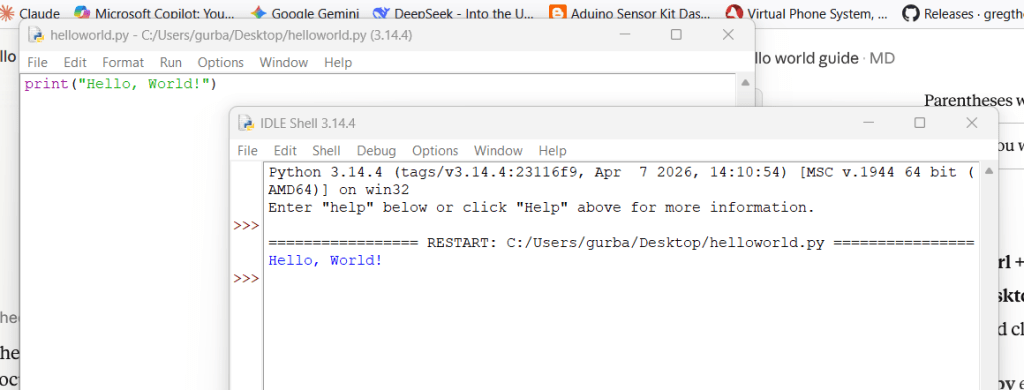
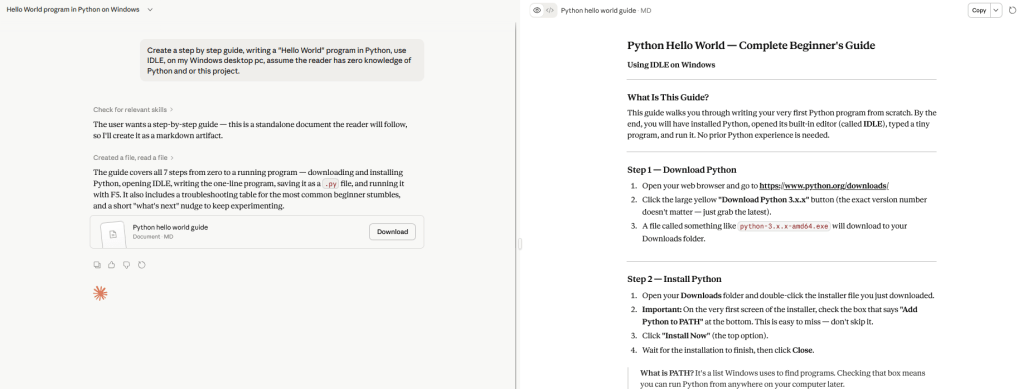
Create a step by step guide, writing a “Hello World” program in Python, use IDLE, on my Windows desktop pc, assume the reader has zero knowledge of Python and or this project.

The portion “Assume the reader has zero knowledge…” is critical.

Put that prompt into Claude, no need to create a project for something this simple! IDLE is the built in Python dev IDE.

Pretty impressiuve results, the only thing to do now is follow the instructions.

Odds are there will be errors in some of the codes, or hiccups.

Works as advertised!

As always click below to download the files I created.

Download Here

File Compare a Practical HTML Program

So far so good right, but what about a practical HTML program, something that actually accomplishes something.

I solved a problem, where two invoices, one for each month needed to be compared, looking for changes, addition and subtractions, changes in quantities and pricing.

Something that was cross platform as well, html can be run in any modern browser!

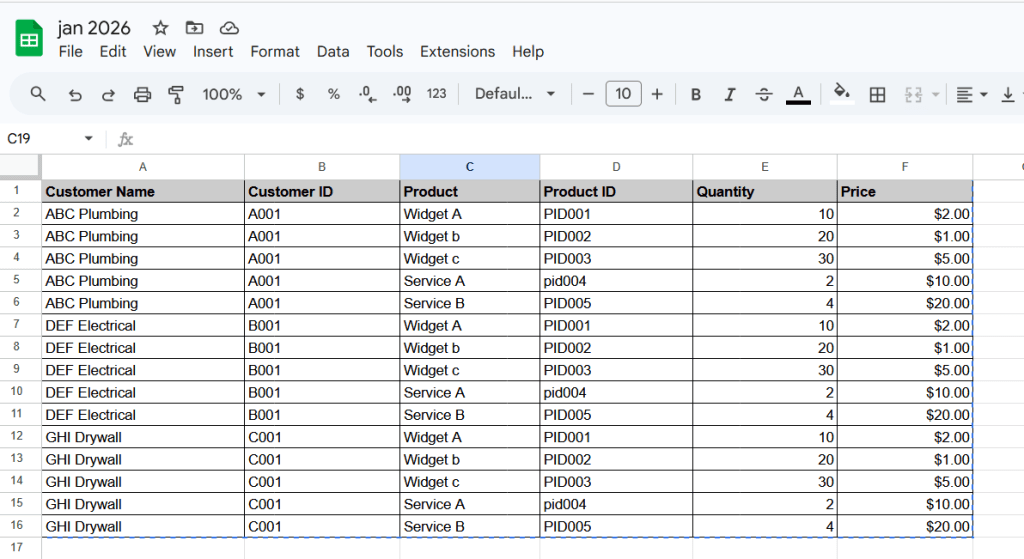
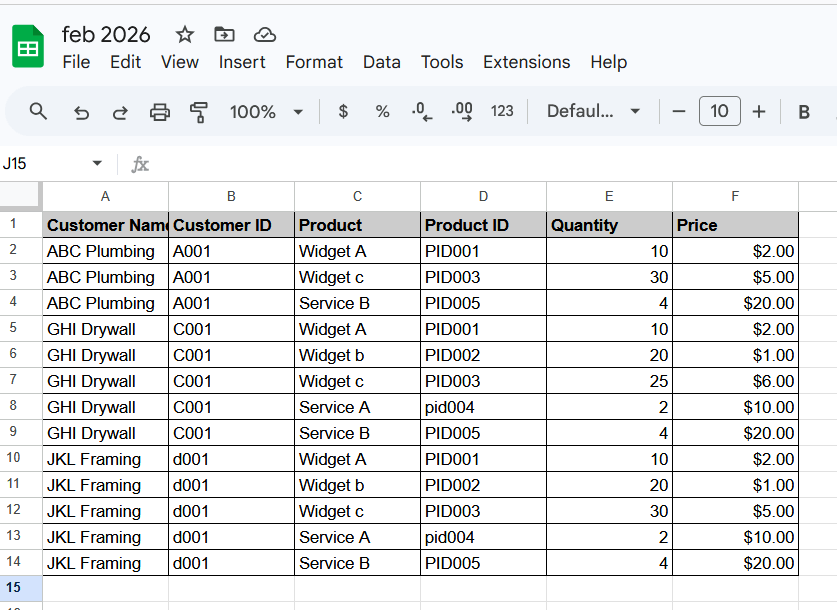
So to duplicate that here as an examples, i cannot use the real company invoices, but I created some in Google sheets, exported them as CSV files.

If you are not familiar with csv, you should start, getting data out of your vibe coded programs is easiest done in csv format!

Here are the examples from the fictional company –

I kept these simple, the one I made for practical use with with csv files that had over 1000 lines and worked well.

This is where learning to prompt starts to make a difference, what you prompt the AI Chatbot will determine how well your code works and how fast you get there.

You have to think through the process, plus you may need to step away and come back, so we will create our first project in Claude, plus make sure any memory features are turned on. I want to be able to start this project and finish later today.

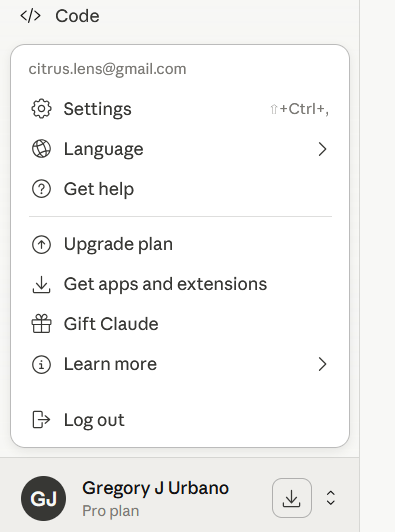
Go to “Settings”

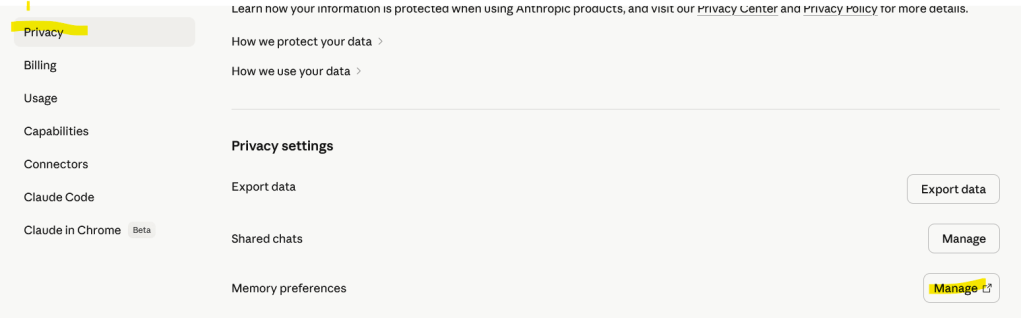
Click on “Privacy” and then “Memory preferences” then “Manage”

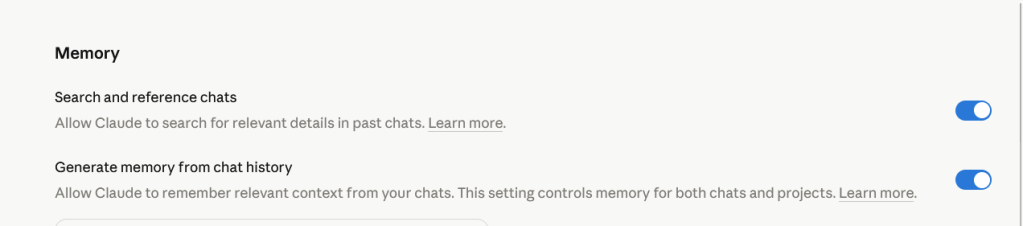
Make sure these boxes are checked.

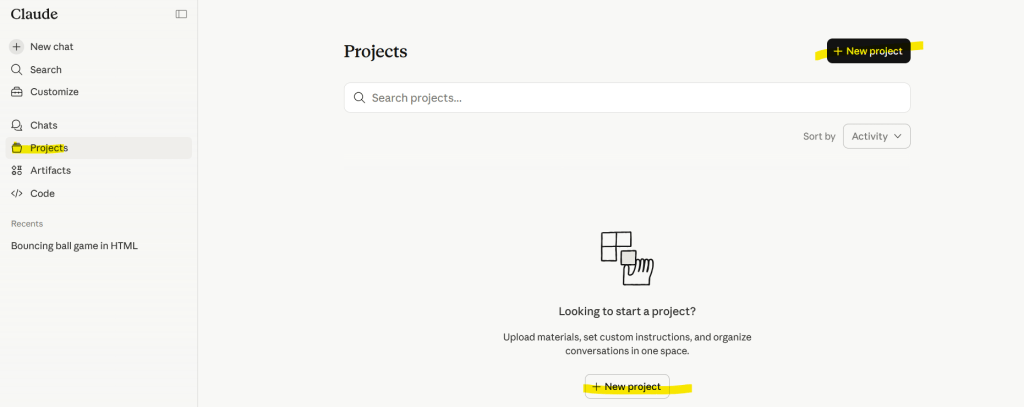
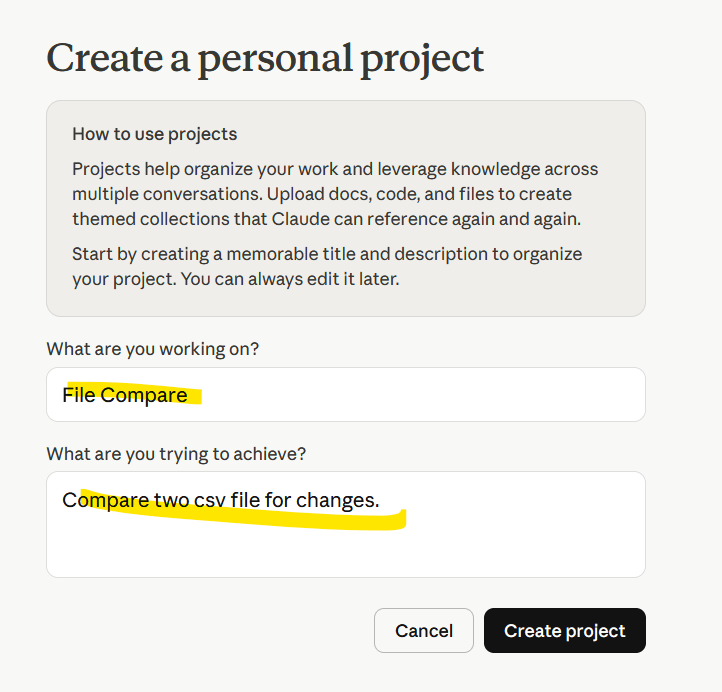
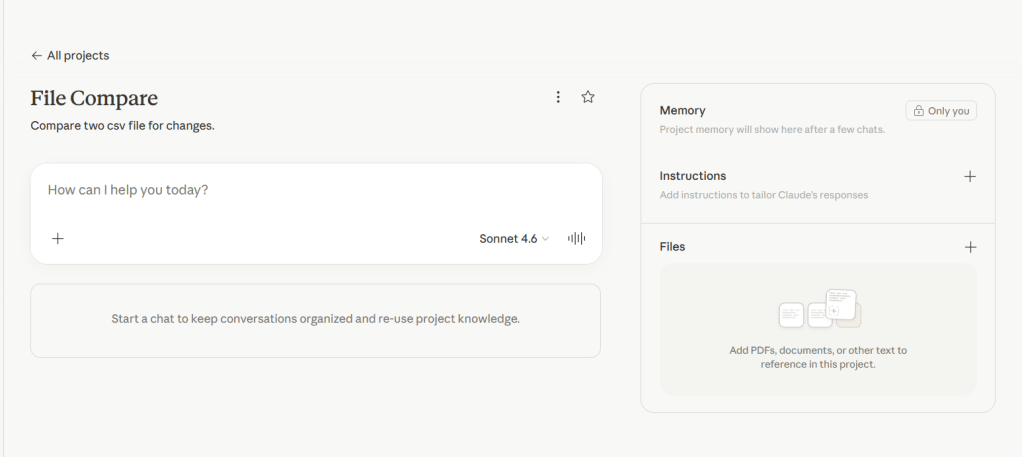
Click on “Projects” in the left sidebar, then “New Project”

Give it a name and short description, click “Create”.

This is where the fun starts to happen, you can download my 2 examples csv files here –

Or create your own in Google Sheets.

This is where we start to tell Claude what we want to do, we want to write html code to create a program that will compare 2 .csv files for changes.

We will eventually have to give it the files, but first let start creating our prompt.

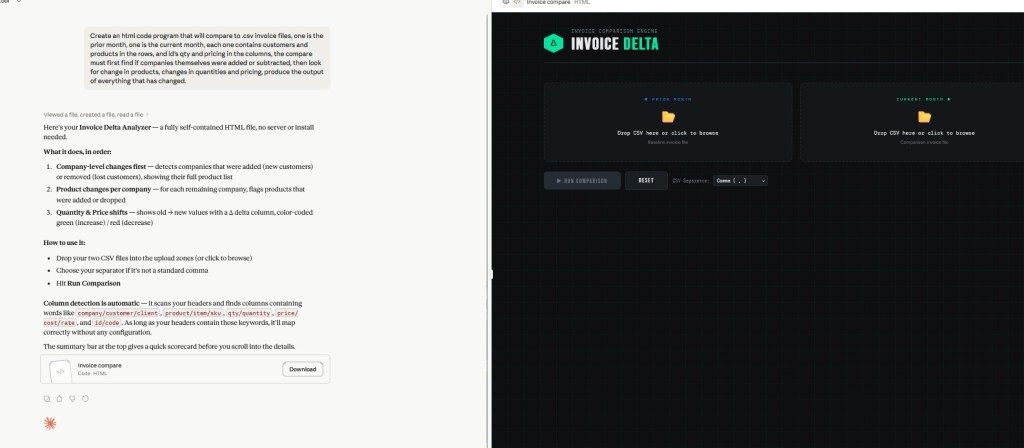
Create an html code program that will compare to .csv invoice files, one is the prior month, one is the current month, each one contains customers and products in the rows, and id’s qty and pricing in the columns, the compare must first find if companies themselves were added or subtracted, then look for change in products, changes in quantities and pricing, produce the output of everything that has changed.

Because I did not tell it not to, Claude took my prompt and went ahead and wrote the code!

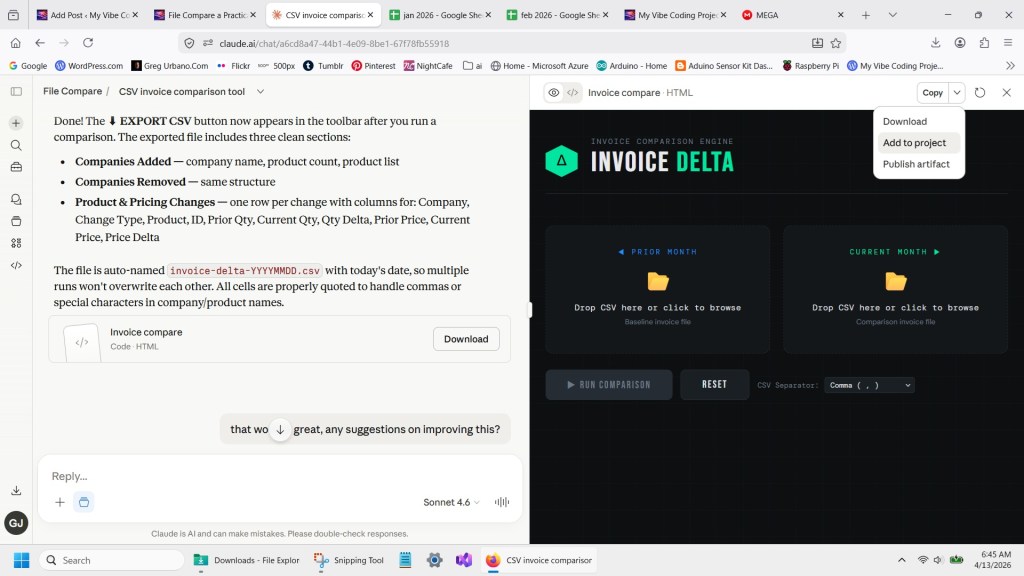
Cluade is great at that, and also presenting it live on the sidebar, plus giving me the download button in the left as well, lets go ahead and run the code, see how it works.

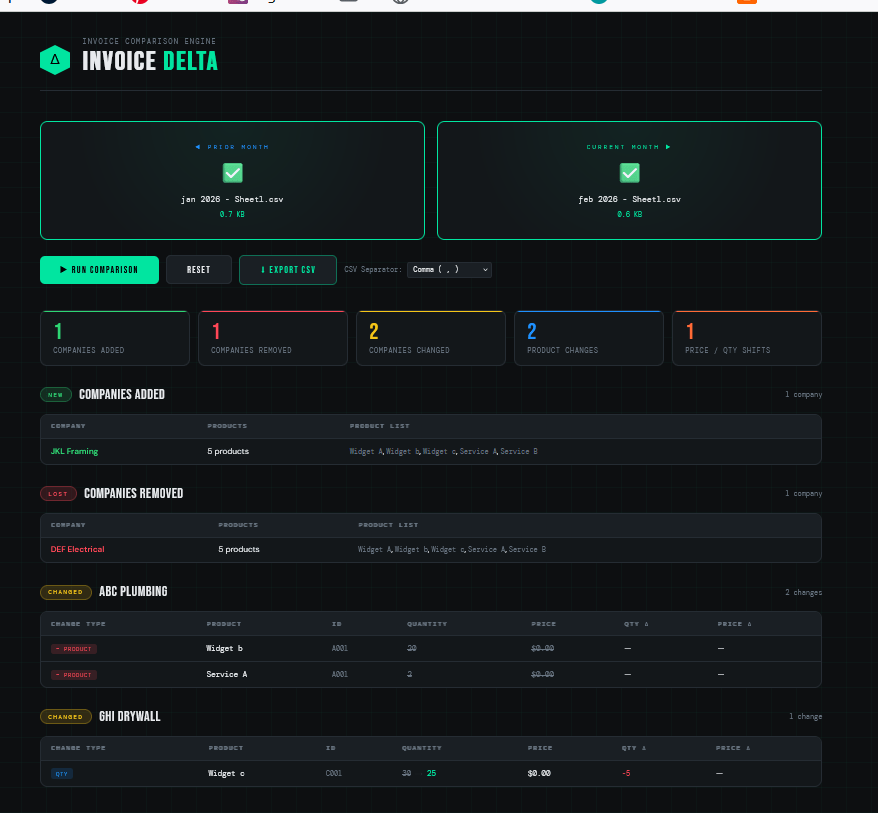
Look at that, perfect right out of the box!

We just need to add one feature, an export, lets let Claude know it did a good job and to add the export feature.

That worked great! Can we add an export feature? to CSV?

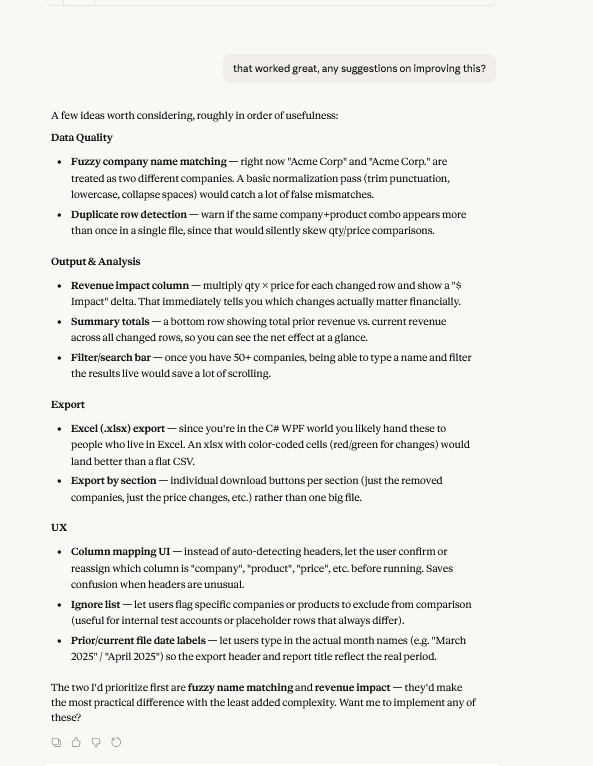
Claude added the export button, I downloaded the html file, opened it in a web browser and the export worked great! You can add additional instructions or even ask Claude what kind of improvements it would make next.

You get the jist, I’m not going to use any more credits on this, I just wanted to highlight how asking the AI Chatbots for improvements can open your eyes to features you may not have considered!

As always you can download the code I generated here, but hopefully you have started you own repository by now, using Google Drive, etc.

Download Here

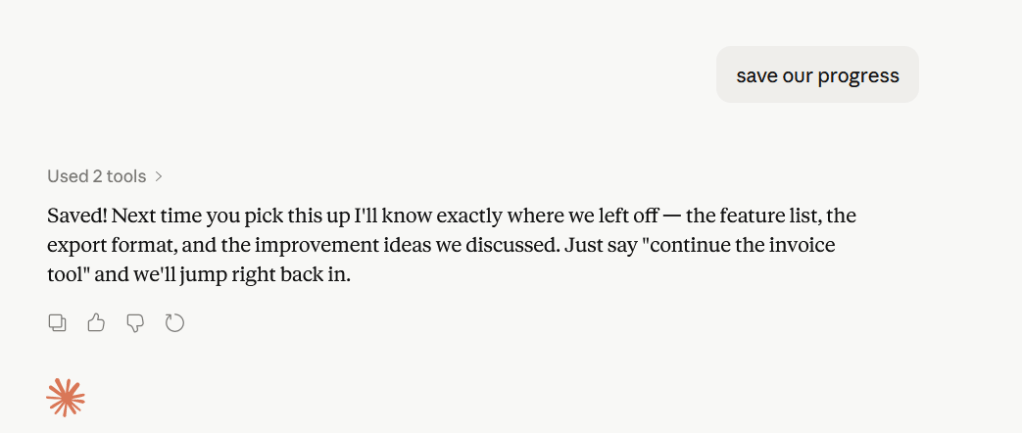
ps, for fute reference, be sure to tell Claude to save your progress to the project, andyou can also add the code to the project.